












Your business probably gets the same customer questions every single day. And answering these questions repeatedly wastes your team's time and frustrates customers who want instant answers.
A knowledge base can fix this. It gives customers a searchable library of answers that works 24/7, providing clear information when they need it. In this guide, we'll show you how to build a knowledge base that actually works for online stores – from planning your first articles to keeping everything up to date.
Let's dive into it!
- A knowledge base is your support team's best tool for reclaiming time.
Answering the same customer questions repeatedly wastes team resources that could be spent on complex, high-value interactions.
- FAQs break down fast once you hit more than ten questions.
A knowledge base scales beyond simple lists by combining searchable articles, categories, and visual guides in one organized place.
- External and internal knowledge bases solve two completely different problems.
One helps customers self-serve on orders and policies, while the other equips employees with processes and training materials.
- Screenshots and videos inside articles stop customers from hitting dead ends.
Strong knowledge base articles link to related content and include visual guides so customers keep moving toward resolution independently.
- A knowledge base sits between a FAQ and full technical documentation intentionally.
It offers the accessibility of simple Q&A with the depth needed to cover complex products, policies, and troubleshooting steps.
What is a knowledge base?
A knowledge base is an organized collection of information that helps customers solve problems without contacting your support team. Think of it as your company's brain made public. Everything your team knows about your products, policies, and processes lives in one searchable place. When a customer wonders how to track their order or process a return, they type their question and get an answer in seconds.
What a knowledge base usually includes
Most knowledge bases cover:
- Product information and sizing guides
- Shipping, delivery times, and tracking help
- Returns, exchanges, and refund policies
- Payments, taxes, and checkout issues
- Troubleshooting articles for common problems
- Getting started guides for new customers
FAQ
They sound similar, but each format serves a different purpose as your content grows. Here's the difference:
A FAQ page answers common questions in a simple list format. It works for basic queries, but gets messy fast when you have more than ten questions.
Documentation explains technical details about how something works. It's usually written for developers or power users who need deep information about features and integrations.
A knowledge base sits in the middle. It combines the accessibility of FAQs with the depth of documentation. You get searchable articles, organized categories, visual guides, and content that scales as your business grows.
Strong ones also include screenshots, short videos, and links to related articles so customers can keep moving without hitting a dead end.
The goal is simple: answer questions before customers have to ask.
Core types of knowledge bases
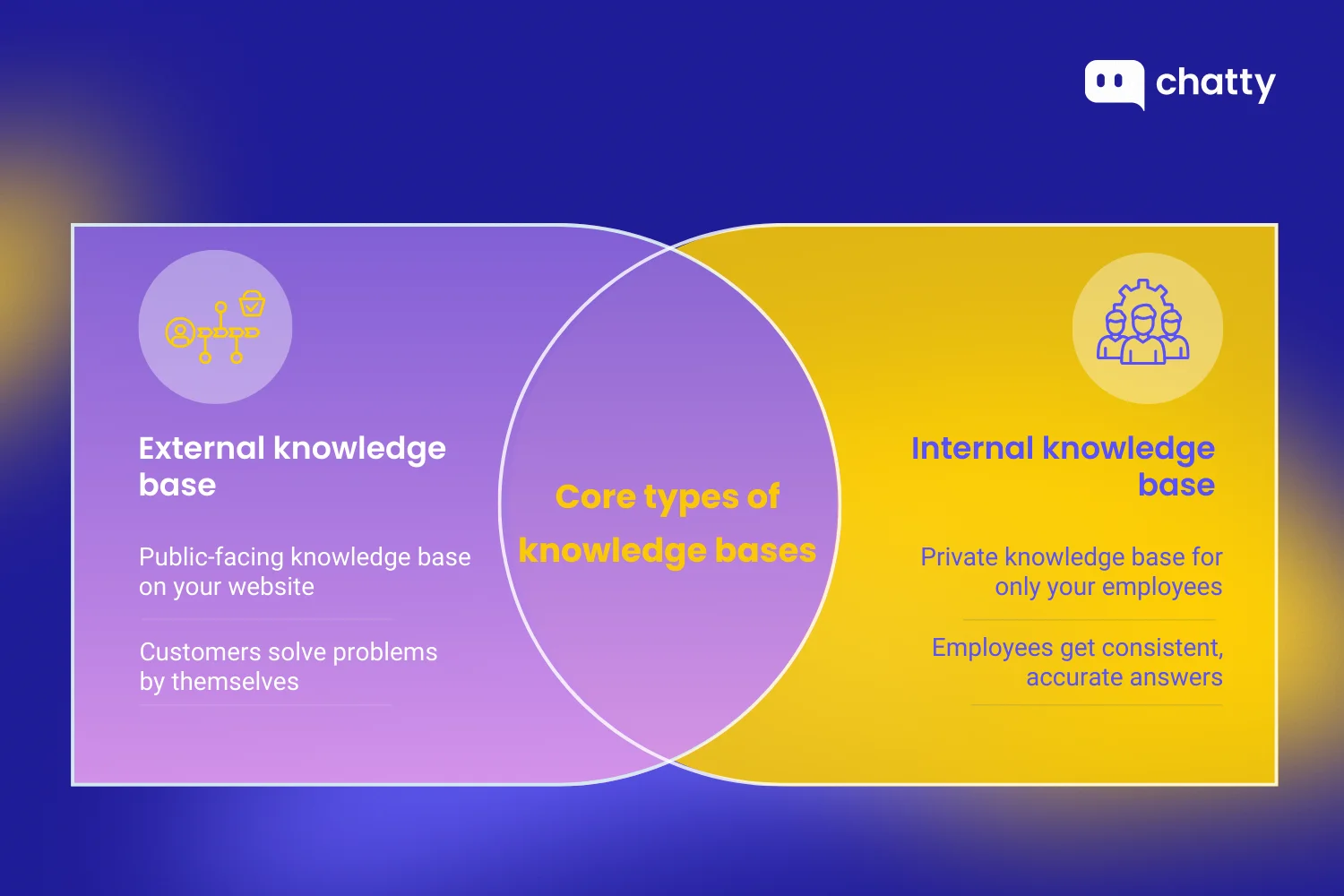
Knowledge bases come in two main types, and most businesses need both. The difference comes down to who uses them and what information they contain.
External knowledge base
This is the public-facing knowledge base on your website. Customers use it to find answers about orders, products, and policies without contacting support.
What it includes: Product guides, shipping and return policies, order tracking instructions, troubleshooting steps, and FAQs about payments or sizing.
This type of knowledge base helps customers solve problems by themselves. When they can't find an answer, they either contact support or leave your site.
Internal knowledge base
This is the private knowledge base only your employees see. It contains processes, training materials, and everything your team needs to work consistently.
The difference matters. External knowledge bases help customers solve problems. Internal knowledge bases help employees give consistent, accurate answers. When your support team gets a complex question, they check the internal KB (knowledge base) first.
Many businesses skip the internal knowledge base and wonder why new hires take months to get up to speed or why different team members give conflicting answers.
5 major benefits of a knowledge base
A knowledge base delivers real value for both your customers and your business. Here's what you actually get:
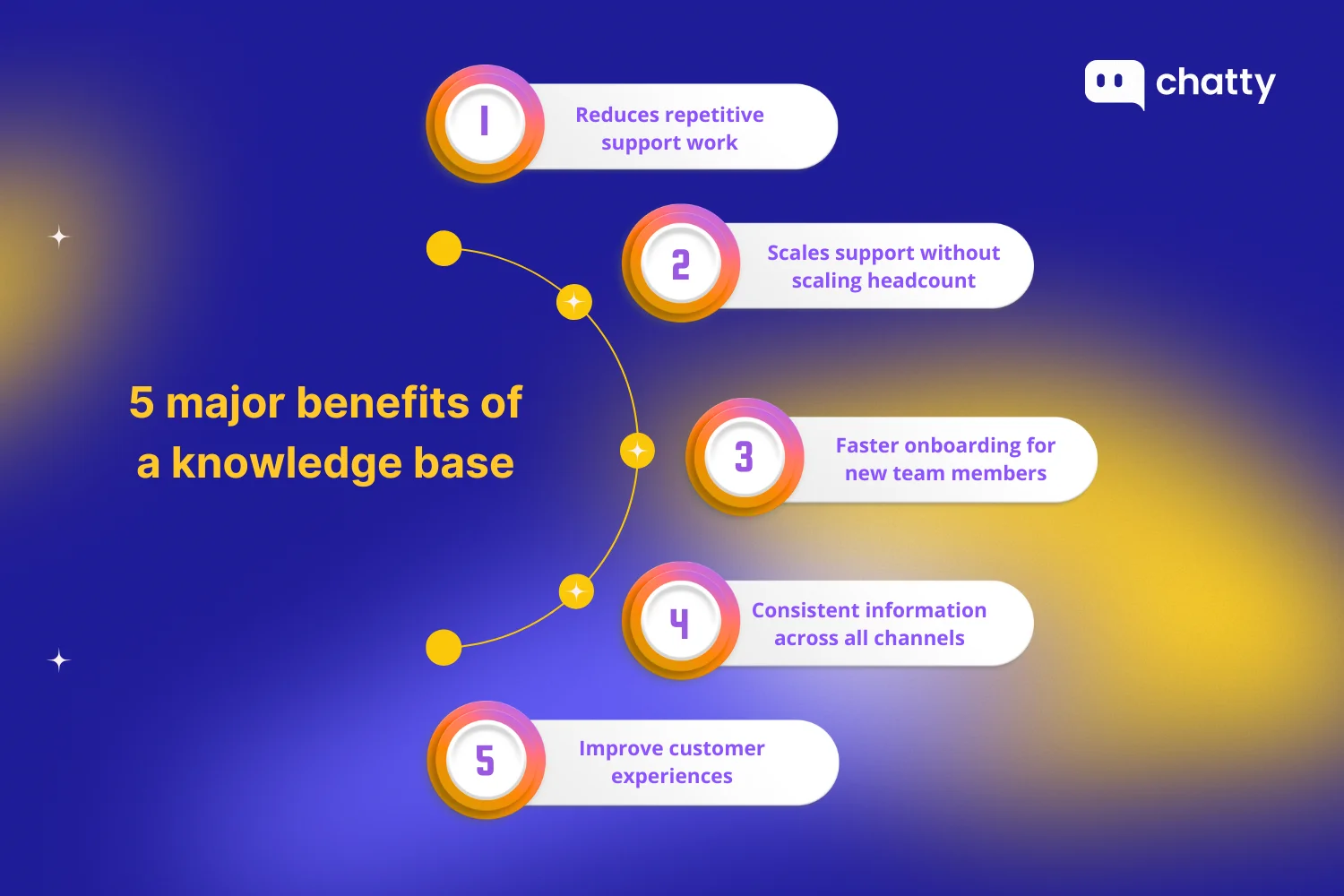
1. Reduces repetitive support work
Your team stops answering the same questions over and over. When customers can search "how do I track my order" and get instant answers, support tickets drop by 20-40%. Your team focuses on complex issues that actually need human attention.
2. Scales support without scaling headcount
During busy seasons or product launches, a knowledge base can handle an unlimited number of customers simultaneously. You don't need to hire extra staff every time order volume spikes. It works 24/7 without breaks.
3. Faster onboarding for new team members
New hires get up to speed faster when everything is documented. Instead of asking senior employees the same questions, they read the internal knowledge base. Your experienced staff stays productive rather than spending all day training people.
4. Consistent information across all channels
Customers receive the same answer because they read the same source. No more situations where one agent says returns take 3 days and another says 5 days (at the exact location). Your knowledge base becomes the single source of truth.
5. Improve customer experiences
Self-service puts them in control. When customers find answers quickly, they feel competent rather than dependent on your support team.
How does a knowledge base work?
A knowledge base stores all help information in a single, organized library and makes it searchable.
First, businesses create articles that answer common customer questions. These articles are grouped into categories and tagged with keywords.
When a user types a question, the system searches this library, finds the most relevant article, and shows it as the answer. The same content can be used by the website search, help center, and chatbot.
When information changes, the article is updated in one place. Every channel then shows the new version, so customers and support agents always see the same answer.
In simple terms:
Store answers → organize them → let users search → show the best match → update once, use everywhere.
Common components of the knowledge base
Every effective knowledge base includes both customer-facing features and behind-the-scenes tools that make everything work.
Frontend components (what customers see):
- Search bar: Most people search instead of browsing. Put search front and center, show suggestions as they type, handle misspellings, and track searches that return no results so you know what to write next.
- Categories and tags: Categories keep the help center easy to navigate, while tags add extra context so one article can show up in multiple paths
- Help articles: These are the main pages. Each article should solve one problem or explain one process. Keep paragraphs short, use bullets and numbered steps, and include clear screenshots when needed.
- FAQs: short answers to very common questions. They are designed for fast scanning and quick reassurance. When a topic needs more detail, an FAQ usually links to a full article.
- Feedback options: let readers say whether an article helped them or not. This shows you which content is clear and which needs improvement. It helps keep the knowledge base accurate over time
- Multimedia: Screenshots, short videos, and GIFs reduce confusion for step-based tasks. Add descriptive alt text for images so content is easier to understand and easier to find.
- Extra support paths: Support links are included for cases where self-service is not enough. They point users to chat, email, or contact forms so customers know help is available when they need it.
Backend components (what powers the system):
- Content management system: The editing interface where you create, update, and organize articles. Look for features such as rich-text editing, image uploads, version history, and draft management.
- AI-powered content assistance: Modern AI automatically turns repetitive customer questions into FAQ articles. Instead of manually tracking common questions, AI identifies patterns and suggests new articles based on what customers actually ask. Tools like Chatty can analyze chat conversations, spot trending questions, and recommend which FAQs to add to your knowledge base next.
- Analytics and reporting: Track article views, search terms, bounce rates, and user behavior. This data shows you what content works, what needs improvement, and where gaps exist.
- Access control and permissions: Control who can view, edit, approve, and publish content. Support agents might draft articles, which managers approve before publication. This keeps your knowledge base accurate and prevents unauthorized changes.
The frontend creates the customer experience. The backend gives you the control and insights to keep that experience working well.
How to create a knowledge base (step-by-step)
Building a knowledge base doesn't have to be complicated. Follow these six steps to create something customers actually use:
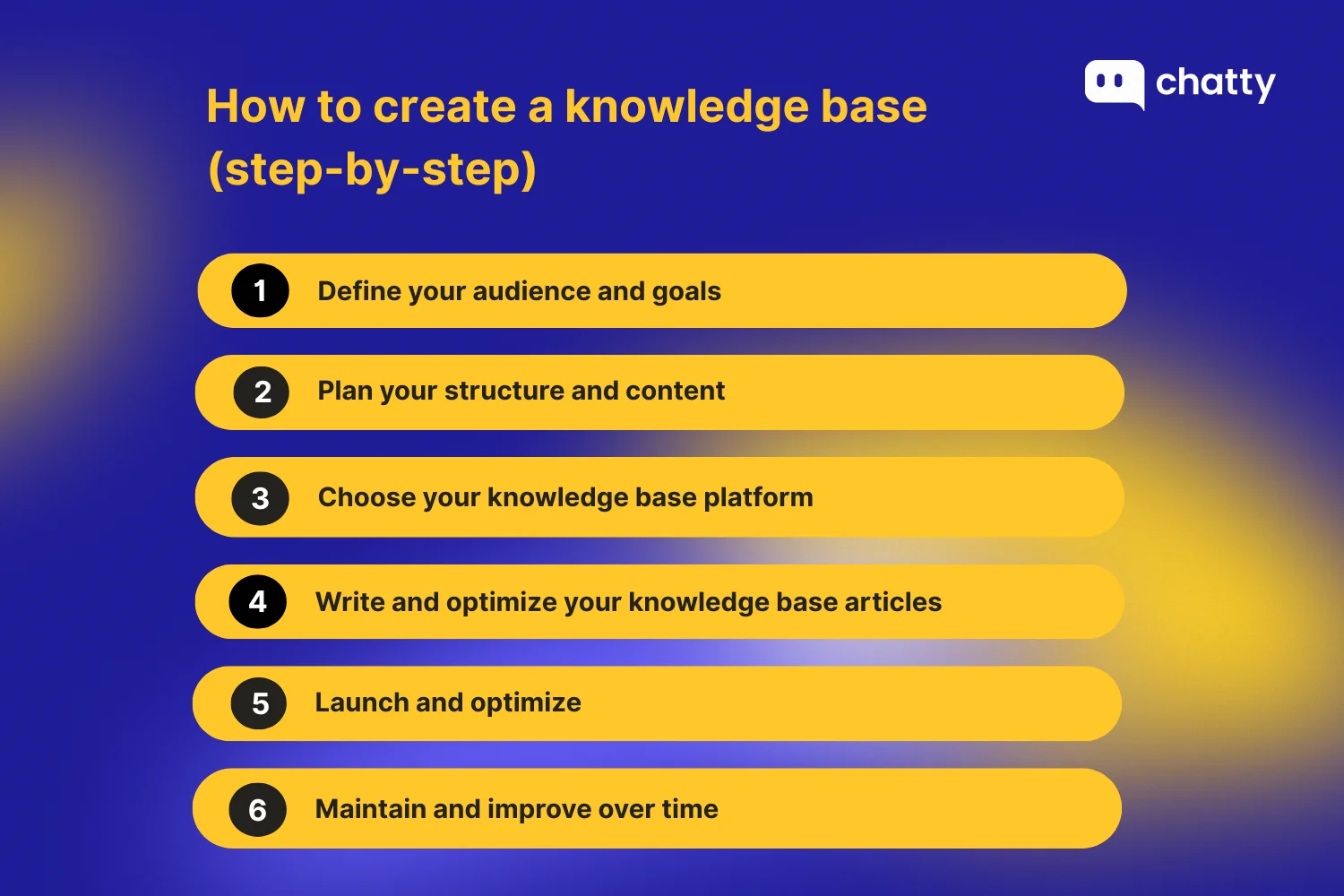
Step 1: Define your audience and goals
Before writing anything, figure out who you're helping and what success looks like.
1. Identify your audience
Before starting anything, you need to be clear about who your audience is.
Are you building a knowledge base for customers? Your audience is everyone who buys from you or visits your store. They need quick answers about orders, products, and policies.
Or, building for your team? Your audience is employees who need training materials, process documentation, and answers to do their jobs well.
2. Set specific goals
Don't just say "reduce support tickets." It's too vague and hard to measure. Make your goals specific with numbers and deadlines, for example:
- Reduce repeat questions about order tracking by 30% in three months
- Cut new hire onboarding time from four weeks to two weeks
- Get 50% of shipping questions answered through self-service within 60 days
- Reduce "where is my order" emails by 40% during the holiday season
The more specific your audience and goals are, the easier it is to measure success and improve your knowledge base over time.
Step 2: Plan your structure and content
Now that you know your audience and goals, it's time to figure out what content you actually need.
1. Find the questions people actually ask
The best way to know what customers need is to look at what they're already asking, and your existing data shows exactly which questions matter most:
- Start with your support tickets: Pull the last 30 days and look for patterns. When you see the same question five, ten, or twenty times, that's a must-have article.
- Check what people search for but can't find: If you already have a search bar on your site, look at the searches that return no results. These failed searches show exactly what content you're missing.
2. Write down your questions
Make a simple list. Start with ten to twenty questions, then write them exactly how customers ask them. For example:
- "How long does shipping take?"
- "How do I track my order?"
- "What's your return policy?"
- "Can I change my order after I place it?"
3. Organize into categories
Next, group similar topics together. Most stores use categories like ordering, shipping, returns, account help, and product information etc. Within each category, list the specific articles you need.
Example structure:
Shipping
– How long does shipping take?
– How do I track my order?
Returns
– How do I return an item?
– What's your return policy?
Keep it simple with just two levels: category, then article. Customers shouldn't need to click through three or four pages to find what they need.
Step 3: Choose your knowledge base platform
Before writing any content, pick the right tool to build your knowledge base. The platform you choose affects how easy it is to create, manage, and scale your content.
Key criteria to consider when choosing a platform:
| Criteria | Why it matters |
|---|---|
| Easy content editing | You'll be writing and updating articles constantly. Choose a platform with a simple editor that doesn't require technical skills. Rich text formatting, image uploads, and drag-and-drop organization make life easier. |
| Good search functionality | Customers should find answers fast. Look for platforms with smart search that handles typos, suggests results as people type, and learns from user behavior. |
| AI and chatbot integration | Modern platforms connect to AI chatbots, like Chatty, pulling answers directly from your knowledge base. This means customers get instant help through chat while you maintain content in one place. |
| Analytics and reporting | You need to see which articles perform well and where customers get stuck. Track views, search terms, and "was this helpful" feedback to guide improvements. |
| Integration options | Your knowledge base should connect to the tools you already use. |
| Scalability | Start small, but choose a platform that grows with you. Can it handle hundreds of articles? Does it support multiple languages if you expand? This will be important in the future |
| Pricing | Costs vary widely. Make sure you're paying for features you actually need. |
Evaluate a few options before deciding. Most platforms offer free trials, so you can sign up for two or three, create a test article, and see how the editing experience feels.
Step 4: Write and optimize your knowledge base articles
Whether you're creating new articles or improving existing ones, the principles stay the same: be clear, be scannable, and focus on solving one problem at a time.
Follow this structure for consistency:
- Lead with the direct answer: Put the main solution in the first paragraph. If someone asks, "How long does shipping take?", start with "Standard shipping takes 5-7 business days." Don't make them scroll.
- Add context and details: After the main answer, explain any important conditions, exceptions, or related information. This is where you cover edge cases.
- Include step-by-step instructions when needed: Use numbered lists for processes. Keep each step simple and actionable.
- End with next steps or related articles: Guide readers to what they might need next. Link to related topics so they don't have to start a new search.
Writing guidelines that work:
- Keep each article focused: One article answers one question. Don't combine "How to return an item" with "How to track your order" into one long page.
- Use titles customers actually search for: "How do I return an item?" beats "Return Policy Overview." So, match the words people type into search bars.
- Structure for scanning: Most people don't read every word; they scan. So, use short paragraphs (three to four sentences max), bullet points for lists, and numbered steps for processes.
- Add visuals for complex tasks: A screenshot can save 200 words of explanation, so if you can explain through an image or a video, do it.
- Front-load important information: Put the answer in the first paragraph. If customers need to wait 24 hours for a refund, say that upfront. Don't bury it at the bottom.
- Include keywords naturally: Use relevant terms in your title, headings, and opening paragraph.
Step 5: Launch and optimize
Before going live, configure these essential features that make your knowledge base actually work.
- Make the search prominent: Put your search bar at the top of every page with placeholder text like "Search for answers…" Configure it to handle typos and suggest articles as people type.
- Add feedback and analytics: Place "Was this helpful?" buttons at the bottom of each article. Turn on analytics to track article views, search terms, and exit points.
- Connect your chatbot: If you're creating a knowledge base for a chatbot like Chatty, connect it now. Test it to make sure it pulls the right information from your articles.
- Configure navigation: Show main categories clearly on your homepage. Add breadcrumbs and links to contact support at the bottom of articles.
- Test before launch: Search for your top ten questions. Click through categories. Try typos. Have someone outside your team test navigation.
Once everything works, go live. Don't wait for perfection; you'll improve based on real usage.
Step 6: Maintain and improve over time
Your knowledge base isn't done once it's live; it needs regular attention to stay useful. You can use this checklist to spot problems and opportunities:
☐ Search patterns – Are customers searching for the same topics repeatedly? Track trending searches to see what content needs updating or adding.
☐ Most-viewed articles – Which articles get the most traffic? These are your star performers. Keep them updated and accurate.
☐ Content gaps – What searches return no results? These are missing articles you need to write.
☐ Articles that create confusion – Which articles lead to follow-up support tickets? These need rewriting or more detail.
☐ Navigation issues – Do customers find answers quickly or bounce after searching? If everyone uses search instead of categories, your structure might be unclear.
☐ Support team feedback – Ask your team: What questions do customers still ask even though we have articles? Either the article is hard to find or doesn't answer well enough.
The goal isn't perfection on launch day. It's continuous improvement based on real usage data.
Knowledge base management and governance
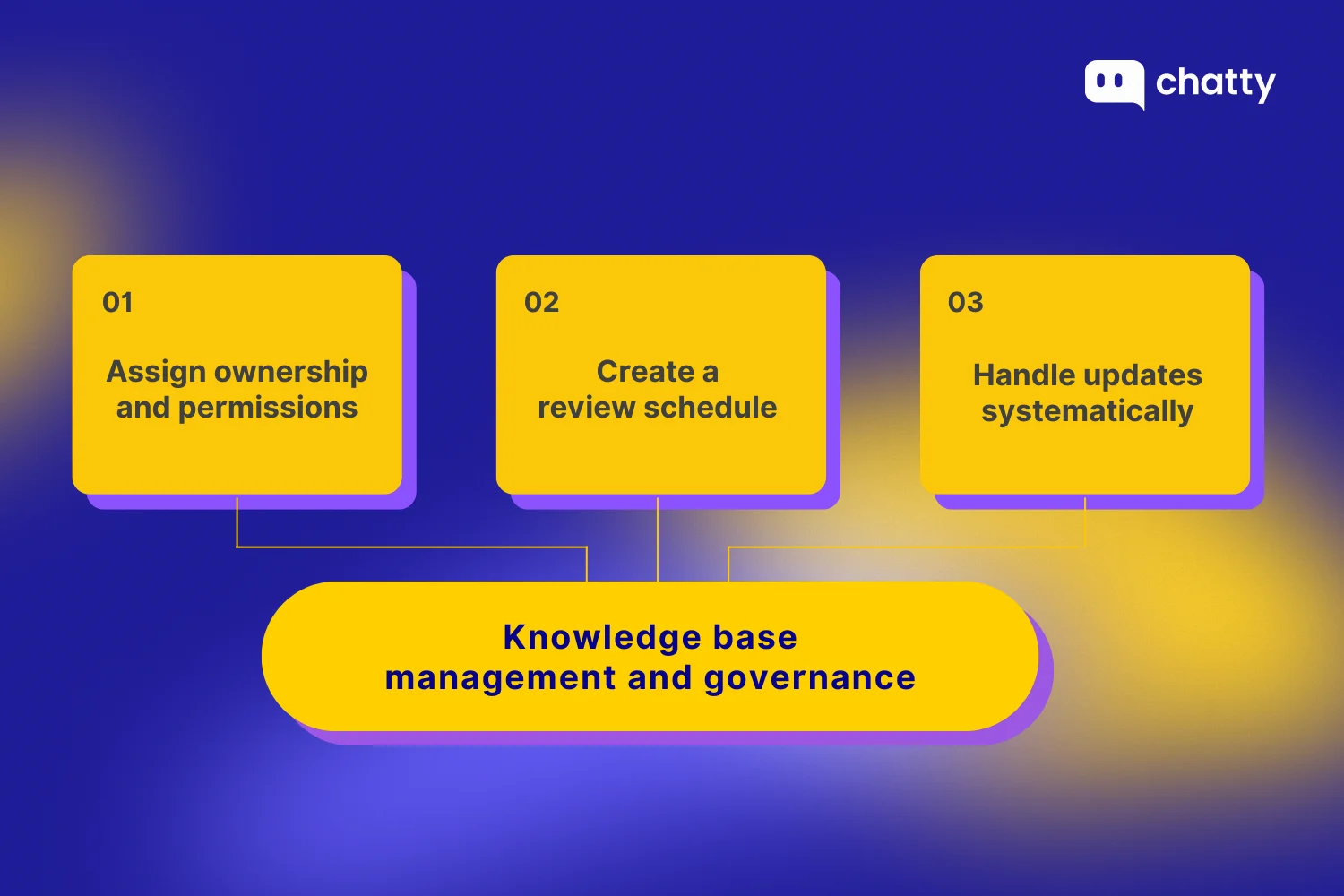
Someone needs to own your knowledge base. Without clear ownership, articles get outdated, questions go unanswered, and your knowledge base becomes useless.
Assign ownership and permissions
Appoint a knowledge base owner. This person is responsible for content quality, reviews, and approvals. They do not need to write every article, but they make sure articles are accurate, updated, and published on time.
Set clear permission levels
- Support agents can draft or suggest updates
- Managers approve and publish content
- Some roles only need read access
Create a review schedule
Set up automatic reminders to review content quarterly. Seasonal content like holiday shipping policies gets updated before each busy season.
Track when each article was last reviewed. Most knowledge base platforms let you add "last updated" dates. This tells customers the information is current and helps your team spot outdated content.
Handle updates systematically
When policies change, update every affected article the same day. Don't let old information linger. If your return window changes from 30 to 60 days, search your knowledge base for "30 days" and update every mention.
For major updates, use version tracking. Keep a change log showing what was updated and when. This helps if you need to reference old policies or track why information changed.
Schedule seasonal updates in advance. Mark your calendar to review shipping deadlines before Black Friday, tax information before year-end, and return policies before major holidays.
Clear governance means your knowledge base stays accurate. Accurate information means customers trust it. Trust means they actually use it instead of flooding your inbox.
3 knowledge base examples
Seeing real examples helps you understand what works. Here are three different approaches to knowledge bases, each serving different needs:
1. Shopify help center (external, customer-facing)
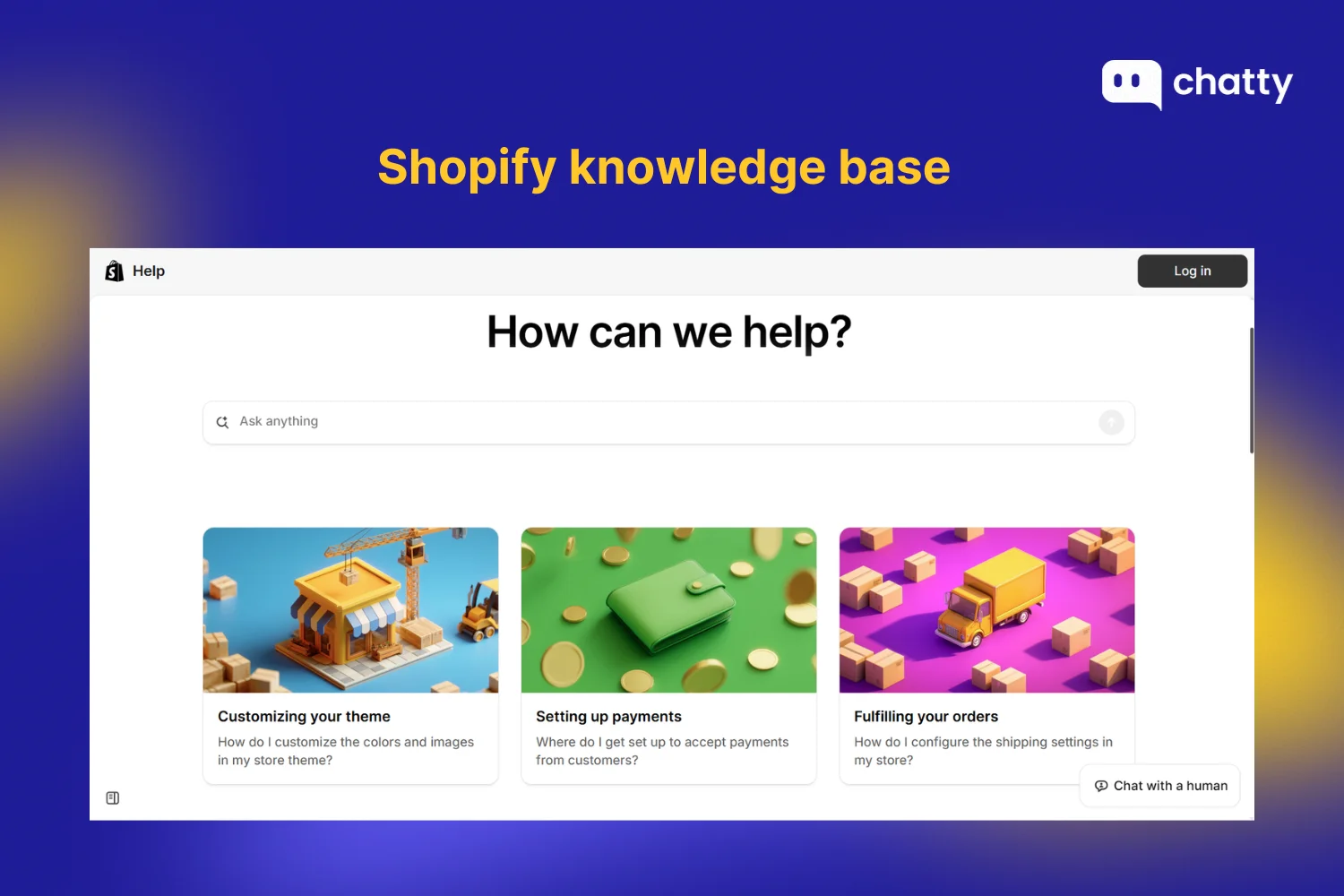
Shopify's knowledge base covers everything from setting up a store to managing payments. It's organized by major categories like "Getting Started," "Products," and "Orders." Each article solves one specific problem with clear steps and screenshots.
What works well: Simple navigation, search suggests articles as you type, and visual guides for technical processes. Articles link to related topics so you don't hit dead ends.
Best for: E-commerce businesses that need comprehensive product documentation and setup guides.
2. Notion help & support (hybrid)
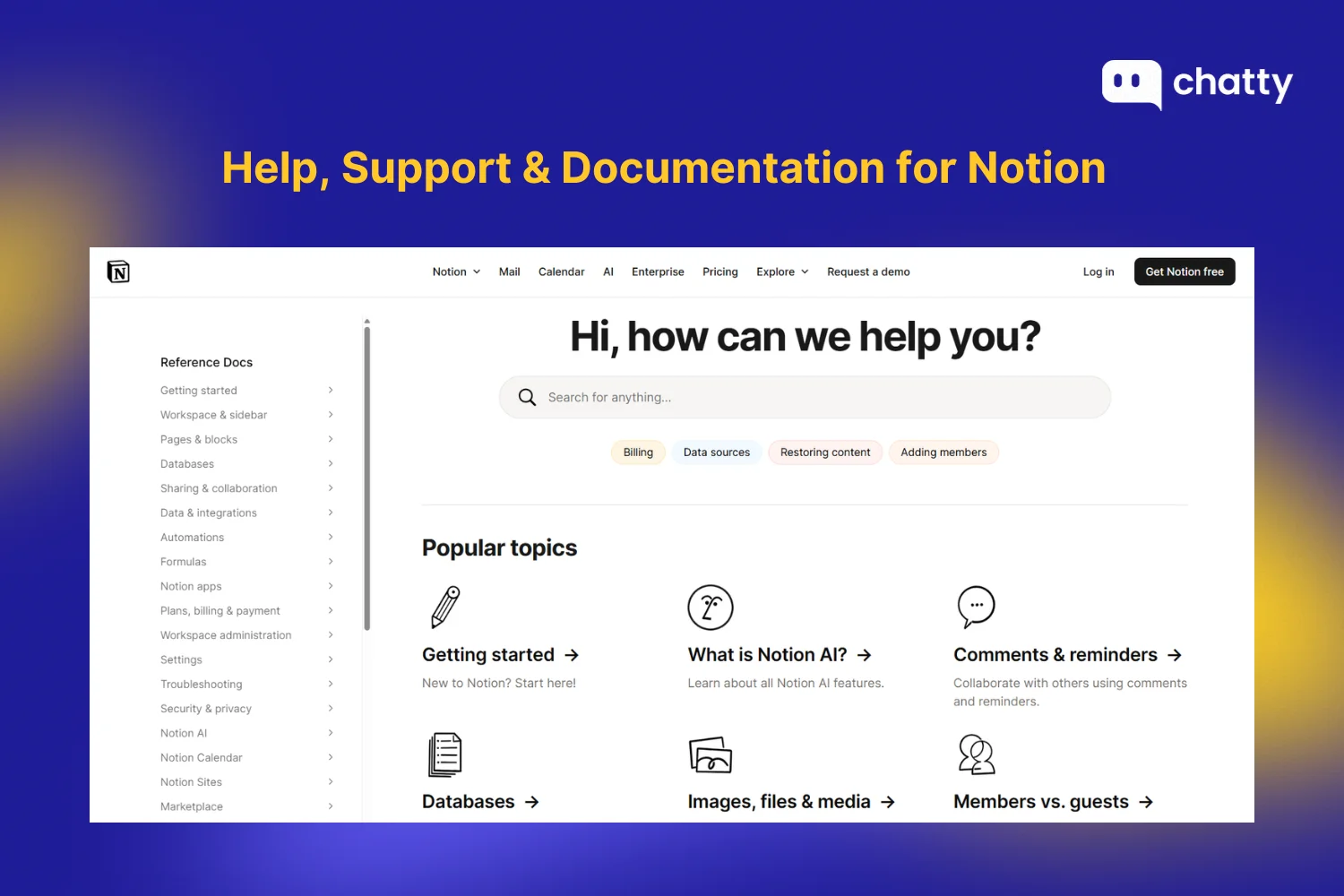
Notion's knowledge base serves both new users learning the basics and power users looking for advanced features. They separate beginner guides from technical documentation, making it easy to find your skill level.
What works well: Clean design, video tutorials embedded in articles, and a "Was this helpful?" feedback system on every page. They also show the most popular articles upfront.
Best for: SaaS products with users at different skill levels who need both quick answers and deep technical information.
3. Internal team wiki (internal, employee-only)
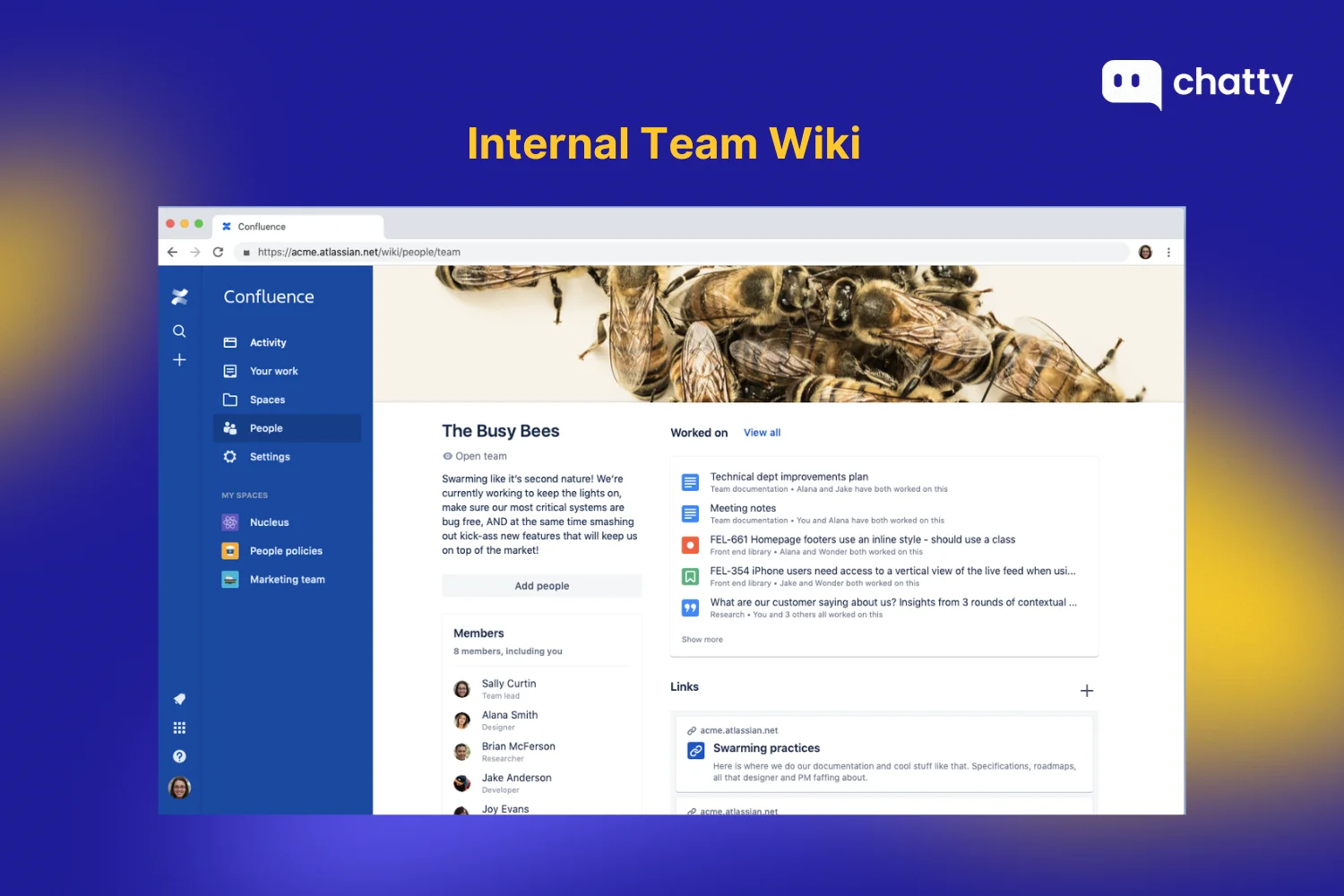
Many companies use tools like Confluence or Notion to build internal knowledge bases for employee processes. These cover everything from onboarding checklists to troubleshooting customer issues to company policies.
What works well: Organized by department, includes templates for common tasks, and uses permissions to control who sees sensitive information like payroll policies or legal documents.
Best for: Teams that need consistent training materials, process documentation, and a single source of truth for company information.
In conclusion
A knowledge base is not just a collection of help articles. It is a core part of the customer experience for any online store. When done right, it removes friction, answers questions before they slow down a purchase, and gives customers confidence at every step.
The key is to keep it simple and useful. Start with real questions customers already ask. Organize content in a way that matches how shoppers think. Write clear, scannable articles and keep them up to date as your products and policies change.
FAQ
Pricing varies widely. Basic tools start around $10-50 per month. Enterprise solutions can run $500+ monthly. For Shopify stores, Chatty offers a free plan that includes a knowledge base feature, so you can try it before committing to a paid plan.
It takes two to four weeks to launch a basic knowledge base with around twenty to thirty articles. You can use a knowledge base template to speed this up by skipping planning and moving straight into writing.
No. Most modern knowledge base platforms are designed for non-technical users.
Yes. Most modern chatbots pull answers directly from your knowledge base. If you're using Chatty, it connects to your knowledge base and uses those articles to respond to customer questions in real time.